Run all your saved GREP queries in one click
GREP Batch Processor runs your saved Find/Change queries in order, across the whole book. Preview the matches first, and undo the entire batch with a single Ctrl+Z.
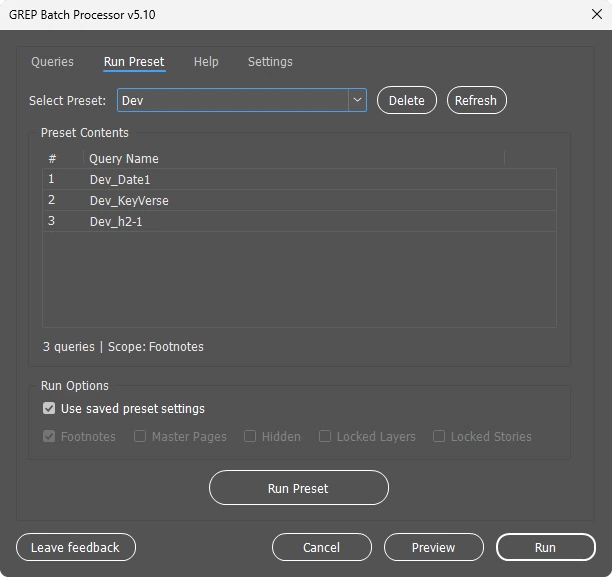
Preset: Book cleanup
Three steps, then it is one click forever
Use the GREP queries you already trust. The script only runs what you saved in InDesign.
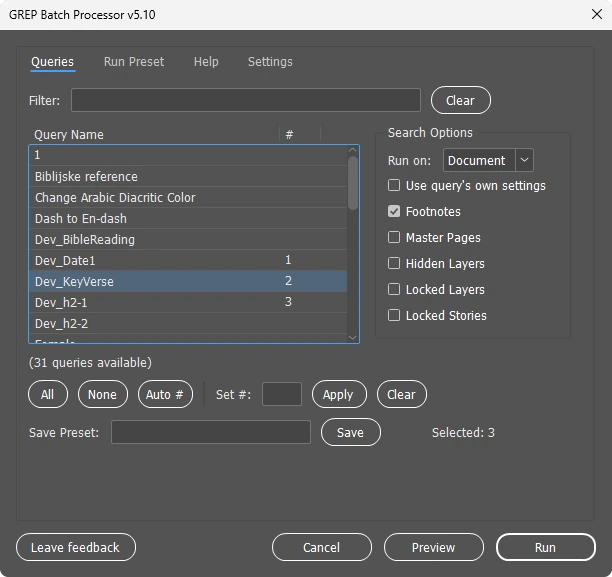
Save your queries
In Find/Change, set up a GREP search and click Save Query. Do it once for every fix you repeat.
Pick and order them
Number the queries in the order they should run and save the set as a preset, like "Book cleanup".
Preview, then run
Preview shows how many matches each query finds. Run applies them all, and one Ctrl+Z takes it back.
Built for long documents NEW IN 5.10
Preview before you run
Count the matches of every query without touching the document.
One undo for the whole batch
Twenty queries, one Ctrl+Z. No more stepping back query by query.
Document, story or selection
Clean the whole book, only the current story, or just the text you selected.
Finds your queries anywhere
Every InDesign language and edition, including CJK and Middle East versions.
Presets
Save query sets per client or book series and run them again in seconds.
Automatic backup
A dated copy of the document is saved before every run, if you want one.
Used in real book production
Finally! A tool that does what every InDesign user has always needed. Batch GREP execution in one click. Fast, clean, reliable.
I have been working in InDesign for more than a decade and very few tools impress me. This one cleaned up my messy Word imports and saved hours of production time.
Used it? Leave a review, it helps other designers find the tool.
Get the InDesign script
GREP Batch Processor 5.10
Free for personal and commercial use. No sign-up.
- Windows and macOS, InDesign 2020 and newer
- Runs locally, no account, no internet needed
- Install guide included in the documentation
If it saves you time, please leave a review.
Let's build an open GREP library, together
Every designer has a few GREP patterns that save hours. Share one, and it helps every other book designer who searches the library. Free for everyone, forever.

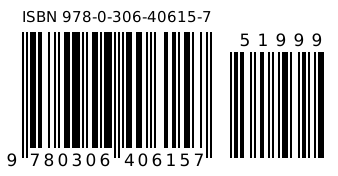
Need a barcode for the back cover?
Barcode Rocket makes print-ready ISBN barcodes with the price add-on, plus EAN, UPC and GS1 codes for products. You get a vector CMYK PDF in 100% black, ready to place in InDesign.
- K 100% vector. No rasters, no rich black, clean separations.
- Book ready. Sizes for Amazon KDP and IngramSpark covers, with or without the price add-on.
- Books, products, logistics. ISBN and QR code free; EAN-13, UPC-A, EAN-8, UPC-E, GS1-128 and GS1 Composite with a free account.
- Checked. Check digits verified, built to GS1 and ISO/IEC specs.
- Lists. Up to 50 barcodes at once with a free account, once you confirm your email.
Questions
How do I install the script?
In InDesign open Window, Utilities, Scripts. Right-click the User folder, choose Reveal in Explorer (or Finder), and copy the file there. It appears in the Scripts panel right away. Step-by-step screenshots are in the documentation.
It says "No saved GREP queries found"
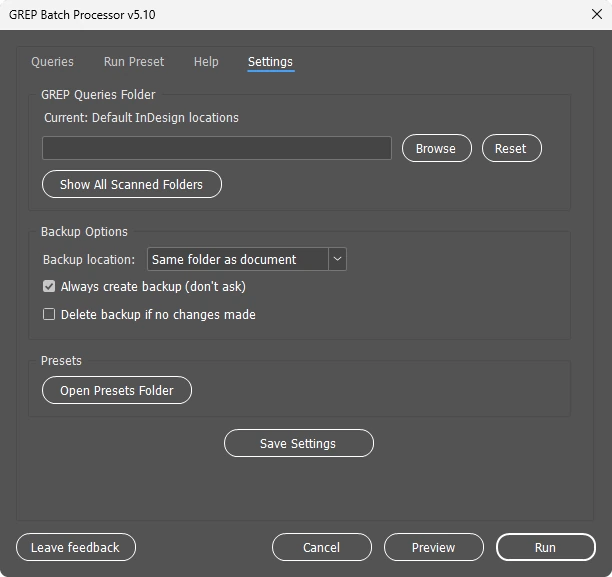
Version 5.10 searches every InDesign preferences folder, including the CJK (Version 19.0-J) and Middle East editions. If your queries live somewhere else, the script now asks you to choose the folder and remembers it.
Can I undo a batch run?
Yes. Since version 5.10 the whole batch is one undo step, so a single Ctrl+Z reverts every query. The optional backup is still there for extra safety on important files.
Where are my saved GREP queries?
- Windows:
C:\Users\[you]\AppData\Roaming\Adobe\InDesign\Version [XX].0\[language]\Find-Change Queries\GREP - macOS:
~/Library/Preferences/Adobe InDesign/Version [XX].0/[language]/Find-Change Queries/GREP
In the script, Settings, Show All Scanned Folders lists exactly where it found them.
Why is the file .jsxbin and not .jsx?
.jsxbin is Adobe's binary format for scripts. It protects the code from being resold. The script runs only on your computer and only performs the Find/Change queries you saved.
Is it really free?
Yes, for personal and commercial work. If it saves you time, a review or a donation to any charity you trust is the best thank you.

Made by Marko Markovic
Book designer working with US publishers and authors. I built this tool because I was tired of running the same GREP queries by hand, book after book, and now I share it with the community. LinkedIn · 5mediadesign.com
Get in touch
A question about the script, a comment, or an idea to work on together. I read every message.